AI and Accessibility
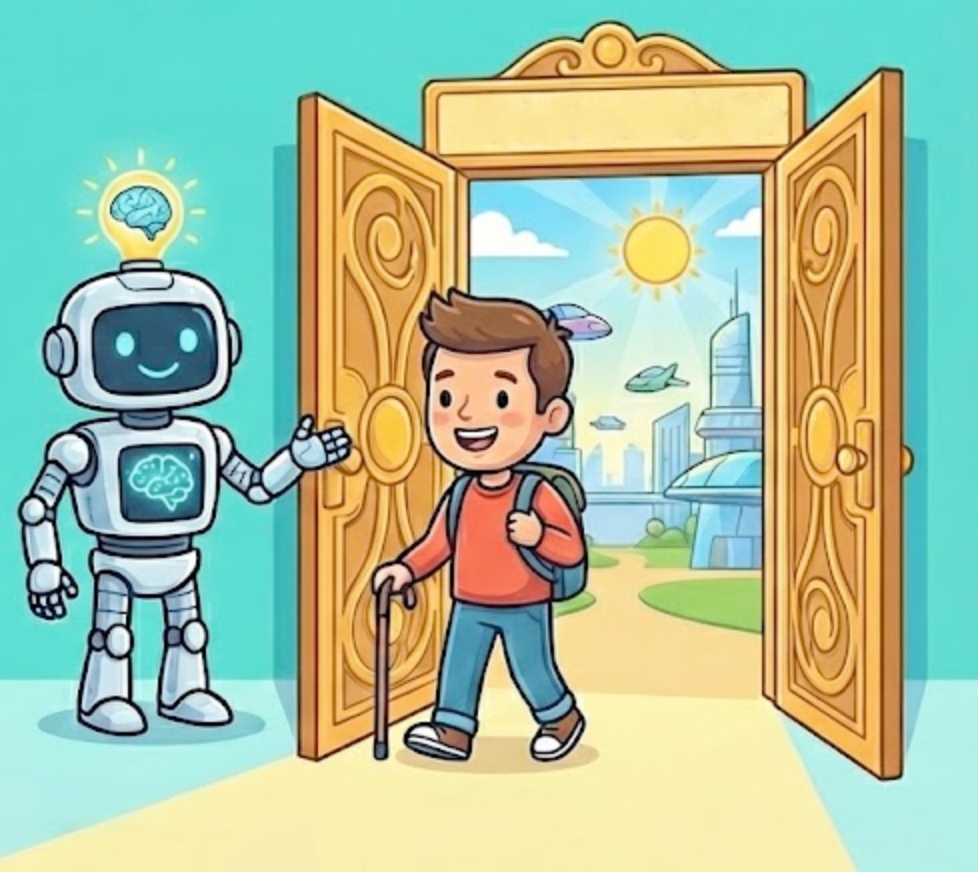
This is a companion piece to my article on what you need to understand about AI. Here I focus on what AI means for accessibility—a subject I have a personal stake in.
A personal stake
I have quadriplegia/—well, /incomplete quadriplegia to be precise. In July 2022 an injury rendered me paralysed, with no movement or sensation below the neck. For six months I stared at a hospital ceiling immobilized. The doctors were telling my family to lower our expectations, that I would need 24-hour care for the rest of my life.
Voice interfaces saved my sanity. Consuming podcasts and audiobooks, interacting with my phone and computer—all through voice. It was the only way I could engage with the world beyond that ceiling.
Somehow, through pig-headed stubbornness and an excruciating three years of physical rehabilitation, I've been extraordinarily lucky in recovering some mobility and use of my hands again. But this is rare. Most people with paralysis do not recover this level of function.
My cervical spine is held together with metalwork, which has acquired a large fracture since it was installed. It weighs on my mind that some day I may lose these gains and return to full paralysis.
For this reason I have a very keen and vested interest in technologies that enable interaction with computers in both hands-free and low-friction ways.
Speech recognition
Not just for setting kitchen timers. AI has changed voice recognition from a rigid interface where you had to speak in a rather robotic way to be understood. It's now a realistic method for controlling your computer, smartphone or tablet, and for dictation with good controls for editing text that were previously clunky and awkward.
Under the hood, modern macOS and iOS have been quietly improving the fidelity of voice input recognition, which has opened up a level of dexterity in what used to be an awkward, stilted mechanism. Windows and Android are catching up, but aren't quite there yet. Additional software such as Dragon NaturallySpeaking opens up those platforms to the same level of control.
And then there's Talon, a community project for voice control and dictation, as well as eye tracking, that works on macOS, Windows and Linux. It's designed for people with disabilities, but is also used by gamers and programmers with RSI.1 It has a steep learning curve, but once you get the hang of it, it's incredibly powerful.
I'll start with the built-in tools in macOS and iOS, simply because they're free,2 easy to use, and already in so many people's hands.
If you want to try this yourself:
- On macOS, go to System Preferences > Accessibility > Voice Control and turn it on.
- On iOS, go to Settings > Accessibility > Voice Control.
- For other platforms, take a look at Dragon software options including free trial versions.
The first thing you should do is open the Voice Control Tutorial (or Guide as it's called in macOS). Spend ten minutes with it. You'll be surprised what's possible.
iOS voice control tutorial


macOS voice control guide


Low-friction typing
Text replacement has been around for a while, but it's being used in new and interesting ways. It allows you to create shortcuts for frequently used phrases, sentences, or entire paragraphs. Particularly useful if you prefer to use a keyboard but still find it slow going.
macOS and iOS have built-in text replacement features, but enough Apple already. TextExpander has been the industry leader in this space for years. However my personal favourite is Espanso, because it's privacy-first, free, open-source and cross-platform.
It works by setting short codes that automatically expand while typing. Typing "addr" could expand to your full address, or "sig" to your email signature. You can set up more complex snippets with variables like the current date or time. Espanso also lets you search for snippets using keywords, so if you can't remember a shortcode you can quickly find the one you need.

Another interesting one is Amazon Q, which is intended for programming but also works for prose. Since I write for my blog using marked-up text in VS Code, Q proposes my next sequence of words as I type. Most of the time it's off the mark, but as it learns my writing style and context, the further I get into a sentence, the more accurate it becomes at predicting my next few words.

NOTE: Since writing the original version of this article, GitHub Copilot has also started pre-empting prose like Amazon Q. I would strongly advise against using Copilot for this purpose, as the risk of your writing being harvested is more concerning here than ever. (I know I keep harping on about it but do read my AI safety guide.)
I show this rather imperfect example to illustrate how fast things are moving. Accessibility tech is in a very exciting place right now.
Head tracking
I'll briefly mention macOS's built-in head tracking feature, which allows you to control your Mac with head movements. It's a nice alternative for those with RSI.
It does nothing for me though, as my neck is ground zero for my injury.
Eye tracking
What I find really exciting is eye tracking, which lets you control the computer with eye movements alone. Pop sounds with your lips for clicks, sssh sounds with your tongue for scrolling, and a few others.
Top of the market is EyeGaze, particularly marketed for disabilities such as quadriplegia. But with its $10,000 price tag, it's out of reach for most.
What wins my vote is the Tobii Eye Tracker. At under €300/$, it's within most people's reach. It's aimed at the gamer market, but in conjunction with Talon, it enables true hands-free control of the computer.
See it in action:
- Playing StreetFighter II hands-free
- I had to learn to code by voice
- Explaining Eye Tracking in Talon Voice with Control Mouse
The Tobii 5 hardware itself is available on Amazon and tobii.com.
For blind users
I probably won't do the following justice, as I have less experience here. But these are important.
For blind users, there are three go-to tools most commonly in use.
NVDA, or Non-Visual Desktop Access, allows blind and vision impaired people to access and interact with Windows through an audio (screen-reader) interface. It's free and open source, highly customisable, with a large community of users and developers.
JAWS, or Job Access With Speech, is a paid screen reader for Windows.
VoiceOver is Apple's built-in screen reader for macOS and iOS. It's free2 and requires no additional software.
All three support hardware braille devices, which convert text on the screen to braille, allowing blind users to read and write faster and with higher fidelity.
AI-powered vision assistance
Exciting new developments here are using generative AI to help blind users navigate the environment. These apps use computer vision to describe the world around you, including reading text, identifying objects and people, products in supermarkets, and even recognizing emotions.
Two examples that are free to download and use:
- Seeing AI by Microsoft, for Apple iOS and Android
- Google's Lookout for Android
For visually impaired users
Some of these are not new but are being augmented by AI. I include them here because they're so simple yet I'm constantly surprised at how many people struggle to read their devices when help is just a few clicks away.
Zoom
All operating systems3 have built-in zoom features that make it easy to quickly enlarge text on the fly then return to normal. You don't have to sacrifice screen real estate permanently.
Example zoom controls

Contrast
All operating systems have built-in contrast features that make it easy to change the contrast of text quickly.
Enabling high contrast

Filters for colour-blindness
All operating systems have built-in filters for colour-blindness. They filter the blind colour and give it higher contrast in a visible colour so the semantics are preserved.
All platforms cater for Protanopia (red-blind), Deuteranopia (green-blind), and Tritanopia (blue-yellow blind).
In addition macOS and iOS have Colour Tint (a custom tint overlay you can adjust manually) and Greyscale for users who are fully colour blind or prefer no colour.
Example colour filters

Learning disabilities
For AI's role in supporting learners with disabilities, including dyslexia and ADHD, see my separate piece on AI and Learning. There's significant overlap between accessibility tools and educational technology, and that piece covers adaptive learning platforms, early screening tools, and text-to-speech software used in schools.
The road ahead
I haven't even touched on generative-AI imaging, video, music, and more. I have a little project in the works in this area so I'll be returning to the subject—watch this space.
What's clear is that AI is not just a parlour trick for those of us with disabilities. It's opening doors that were previously locked, and it's doing so faster than any previous technology shift I've witnessed.
The challenge now is ensuring these tools remain accessible and affordable, and that the people who need them most aren't left behind in the rush to monetise.
Footnotes
RSI = repetitive strain injury, a common problem for programmers and office workers. Caused by repetitive movements like typing or using a mouse, leading to pain and discomfort in the hands, wrists, and arms.
Free, insofar as if you've bought an Apple device, you've already paid for it. No additional subscription required unlike Dragon or Microsoft Copilot.
OS or Operating System, is the base software on your computer or smartphone—Windows, macOS, iOS, Android.